

Before you switch job management software, decide whether moving now will fix the problem that made you want to leave, or whether moving at the next renewal date, or staying put, costs you less. A switch takes weeks of someone's time, and the risk isn't the new app. It's the records left behind in the old one: unpaid invoices, service dates, certificates and photos you'll need for years.
Below is how to make that decision, the list of records to export, what the tax and data protection rules mean for the move, and a changeover plan that keeps every open job, quote and unpaid invoice in view. Our guide to choosing job management software covers picking the new system; this guide starts once you're thinking of leaving the old one.
Reasons to switch, and reasons to stay
Good reasons to move are problems the current app can't fix however well you use it. The engineers' side doesn't work on site without signal. It can't hold the certificates your trade produces. The price has gone up per user and you've added staff. It doesn't link to your accounting software, so someone types invoices across every week.
Weaker reasons are problems that would follow you to the new app. If engineers don't complete jobs on their phones now, they won't in the new system either. If quotes go out late because no one person owns them, a better quoting screen won't change that. Our guide on whether you need job management software has a one-week admin log that shows which kind of problem you have.
The middle path is to stay and fix the setup. Many firms use a fraction of what they pay for. Ask your current supplier for a review call, switch off the features no one uses, and drop licences for people who've left. If the problem is still there after that, you know the switch is worth the effort.
Read your contract before you give notice
Find the terms you agreed to and look for four things before you tell anyone you're leaving.
The first is the notice period and the renewal date. Annual contracts often renew automatically unless you give notice a set number of days before the end. Miss that date and you may be paying for another year while running the new system.
The second is how long you keep access after cancelling. Some suppliers close the account on the last day of the contract; others give a read-only period. You need enough time to export everything and check it.
The third is the export itself: which records come out, in what format, and whether there's a fee. The fourth is what happens to your data afterwards, which we cover below under customer data.
Plan to run both systems for at least a month. The overlap costs a month's fees, which is cheap insurance against finding a missing record after the old account has gone.
What to export from the old system
Export more than you think you need. A contact list isn't enough: you want the history behind each customer, because that's what you'll be asked about.
Ask for each export as a CSV file (comma-separated values, which opens in any spreadsheet), plus a separate download of photos and documents. Open every file before you go further. An export that looks complete in a list of file names can still have empty columns, cut-off notes or missing attachments.
| Record | What to check after export | Why you'll want it |
|---|---|---|
| Customers and sites | One row per customer, every site address, landlord or agent contacts kept separate | Repeat work and warranty calls |
| Job history | Dates, engineer, notes and the job number on each job | Complaints, callbacks and disputes |
| Quotes | Open quotes with their date and value; old quotes with the outcome | Follow-ups still due, and your win rate |
| Invoices and payments | Every invoice number, date, VAT and what has been paid | Chasing unpaid invoices and your tax records |
| Certificates and documents | Each file opens and is linked to the right job | Proof of compliance for years after the work |
| Photos | Photos come out with the job number or date, not as one unsorted folder | Evidence if a job is questioned |
| Service and repeat dates | Next due date and the work type for each customer | Reminders and planned maintenance |
If the supplier can only export some of these, find out now. It changes how long you keep the old account open, or how much you print or save by hand before you leave.
Records you have to keep after you leave
Cancelling the software doesn't end your duty to keep business records. GOV.UK says self-employed people must keep their records for at least 5 years after the 31 January submission deadline of the relevant tax year. Limited companies have a different rule, which our job tracker guide sets out alongside this one.
So the old records have to stay readable for years, not weeks. Save the exports in two places you control, such as your cloud storage and a drive kept in the office, with a plain folder name that says what it is and the month you left. Write a one-page note saying what's in each file and which columns mean what, because you won't remember in four years.
Some trades keep records for longer for their own protection, such as certificates for work that may be checked when a house is sold. Your scheme or trade body may also set rules on what you keep. Check with them, and with your accountant for the tax side.
Customer data when you change supplier
When a software company stores your customers' details for you, it's normally acting as your processor, and you're the controller responsible for that data. The ICO says the contract with a processor must require it, at the end of the contract, to delete or return all the personal data at the controller's choice, and to delete existing copies unless UK law requires them to be stored.
The order matters. Get the full export first and check it. Only then ask the old supplier to delete what it holds, and ask for written confirmation that it has. If you ask for deletion first, there's no going back.
Check your privacy notice too. The ICO's guidance on what privacy information to provide says you tell people who you share their data with, including anyone that processes it on your behalf, either by name or by category. If your notice names the old supplier, update it to the new one. The ICO notes this guidance is under review after the Data (Use and Access) Act, so check the current version.
This is not legal advice or tax advice. It summarises GOV.UK, HMRC and ICO guidance, and these record, VAT and data protection rules apply across England, Wales, Scotland and Northern Ireland. Check anything specific to your business with your accountant or an adviser.
Clean the data before it goes in
A switch is the one time it's easy to tidy up, because everything passes through a spreadsheet on the way. Name one person to own the move, and give them time for it.
Merge duplicate customers, which are common when the same person rang twice or moved house. Fix postcodes and phone numbers in one go. Decide what to do with customers you haven't worked for in years: you may still have to keep their records, but they can stay in the old export rather than cluttering the new system.
Keep your job numbers. If the new app gives every imported job a new number, add a column for the old one, so a customer quoting a number from an old invoice can still be found.
Run a test import first
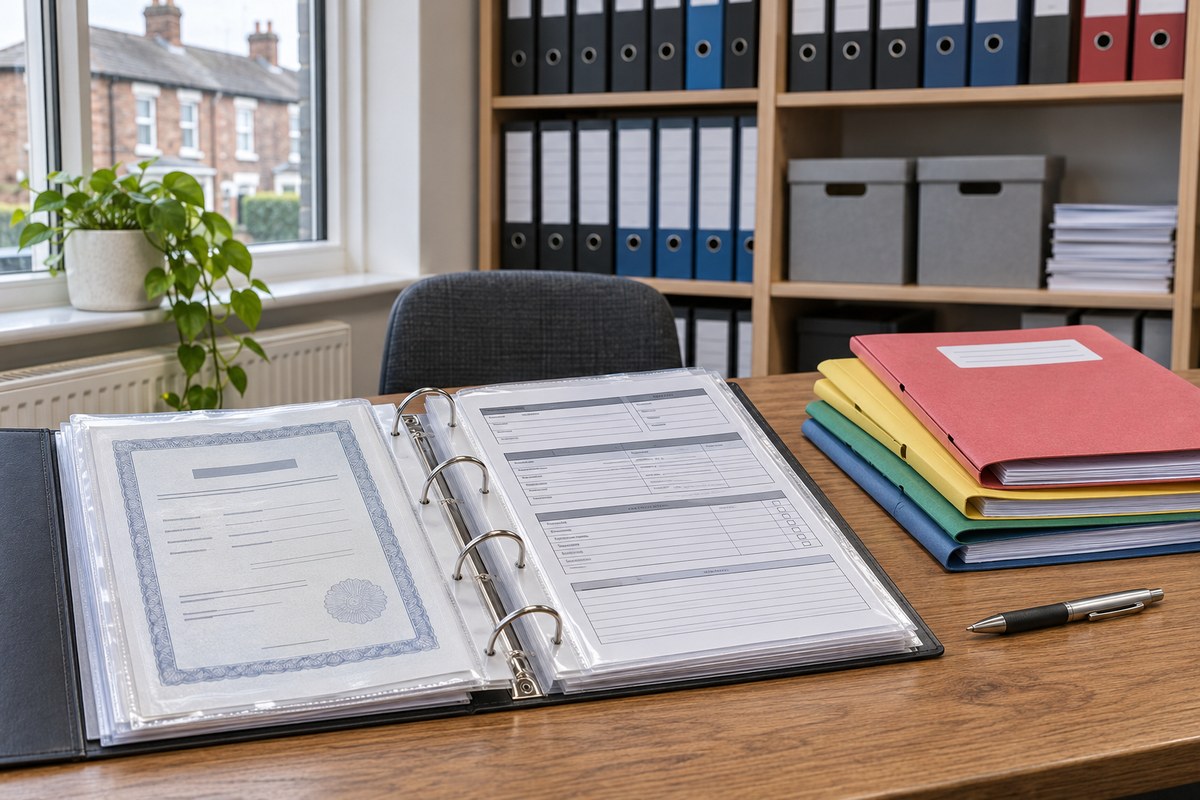
Import a small batch before you move everything. Pick around 20 customers that include the awkward cases: a landlord with several properties, a customer with two addresses, a job with photos and a certificate, an invoice that was part paid.
Then check each one by hand in the new app. Are the addresses complete? Did the notes come through in full, or were they cut off? Are attachments on the right job? Do the money figures match the old system to the penny? Fix the mapping and repeat until the test batch is right, then import the rest.
Most suppliers will help with the import, and some charge for it. Ask what they'll check and what they leave to you.
Keep your invoice numbers in sequence
If you're VAT registered, HMRC's VAT guide says a VAT invoice must show a sequential number based on one or more series which uniquely identifies the document. The new app mustn't start again at invoice 1 and repeat numbers you've already used.
You have two clean choices. Carry on the old sequence, so the first invoice in the new app follows the last one from the old. Or start a new series with a different prefix, such as NJ-1001, and note the date the new series started. Either way, write down the last number used in the old system on the day you change over. Our invoice template for trades lists the other details every invoice shows.
Reconnect the accounting link
If your job app sends invoices to accounting software, the link has to be set up again with the new app. Before you connect it, decide which system raises invoices from the changeover date, so no invoice goes into your accounts twice.
For VAT-registered businesses, HMRC's VAT Notice 700/22 says data moved between the programs that make up your VAT records must move by a digital link. It lists importing and exporting CSV files as one example, and says cut and paste or copy and paste isn't one. If any step of the move involves retyping invoice figures into your accounts, ask your accountant whether that setup follows the rules.
Open work on changeover day
Pick a changeover date, ideally at the start of a quiet week and not at a month end or VAT quarter end. From that date, every new enquiry, quote and job goes into the new app only.
Work that's already moving needs a rule for each kind:
- Open jobs: move them into the new app by hand before the date, with notes, so engineers see them on their phones.
- Open quotes: add each one to the new app with its follow-up date, and close it in the old one.
- Unpaid invoices: chase them from the old system until paid, rather than raising them again in the new one. A second invoice for the same work confuses customers and your accounts.
- Booked future visits: check each one appears in the new diary, with the engineer and time.
Print or save a list of everything open on the day, and tick it off. That one sheet catches the job that falls between the two systems.
Service reminders and repeat work

Repeat dates are the records most often lost in a switch. Annual boiler services, landlord safety checks and planned maintenance visits sit in the old system as reminders, and reminders don't always export as dates you can import.
Export them as a list with the customer, address, work type and next due date, and check the count against the old system. Then set them up in the new app before the first one falls due. If the new app can't import them, enter the next three months by hand first and work through the rest.
If you send reminders by text or email, check what customers agreed to and bring that record across too.
Photos, certificates and attachments
Documents are the second thing most often left behind. Some apps export photos in one large folder with file names that mean nothing, which makes them hard to link back to a job. Our guide to photos to take on a job covers naming and storing them so they follow the job into any system.
Ask the supplier how attachments come out before you sign the notice. If they come out by job number, keep that structure. If they don't, export them job by job for the customers you work for most often, and save the rest as they come.
Certificates need the most care, because they're what you'll be asked for when a house is sold or a landlord's records are checked. Our customer handover pack sets out which certificates to leave after each job; check that every certificate you've issued is saved where you can find it again.
Engineers' phones and logins
Give everyone their own login to the new app from day one, and remove their access to the old app on the changeover date. Two working apps on the same phone means jobs completed in the wrong one.
Show each engineer how to complete one job on their phone before the date, on a job in the new app's test area if there is one. Keep the first two weeks simple: the job, the notes, the photos and the sign-off.
When someone leaves the business during the overlap, remove them from both systems the same day.
Illustrative example: a boiler firm moves its records
The figures below are made up to show the method.
Illustrative example: a two-engineer heating firm moves to a new job app
Old app: annual contract renewing 31 March, 60 days' notice, read-only access for 30 days after the end.
Notice given: 20 January. New app trial on one engineer from 1 February.
Records exported: 640 customers, 2,100 jobs, 1,380 invoices, 410 certificates, 3,900 photos, 520 service due dates.
Test import: 20 customers. First attempt cut job notes at 255 characters and lost 2 second addresses; fixed on the second attempt.
Changeover date: Monday 3 March. Open on the day: 9 jobs, 14 quotes, 23 unpaid invoices, 61 booked visits.
Invoice numbers: old system ended at 4,872; new app starts at 4,873.
Overlap: one extra month of old fees. Old account closed 30 April, after the export check and written deletion confirmation.
The owner's notes after the move said the slowest part wasn't the import. It was the 520 service dates, which came out as text and had to be checked against the old system before the April reminders went out.
Close the old account properly
Before the last day, run the exports again so you have the latest version, and check them a final time. Then confirm in writing that you're ending the contract, ask for deletion of the data once you've confirmed you have everything, and ask for written confirmation when it's done.
Cancel the payment, whether it's a card or a Direct Debit, after the final invoice is settled. Remove the old app from engineers' phones. Update any links on your website or in email signatures that pointed to an old booking form or payment page.
Find your notice date and request an export
This week, find your current contract and write down the notice period and renewal date. Then send your supplier the email below, asking how a full export works. You don't have to have decided to leave; the answer tells you how hard leaving would be, which is worth knowing before you renew. The names and dates in square brackets are invented placeholders; fill in your own.
Test the new app on one real job


Sources checked for this guide
Record-keeping, VAT invoice, digital link and data protection points checked against GOV.UK, HMRC and ICO guidance. These are the primary sources used in this guide.
- GOV.UK, How long to keep your records (self-employed) (checked 11 November 2026)
- HMRC, VAT guide (VAT Notice 700) (checked 11 November 2026)
- HMRC, VAT Notice 700/22: Making Tax Digital for VAT (checked 11 November 2026)
- ICO, What needs to be included in the contract? (checked 11 November 2026)
- ICO, What privacy information should we provide? (checked 11 November 2026)